 3:4
3:4Executive portrait
A confident leadership portrait in a refined editorial style.
Business
Write one scene, choose an enabled model and a frame, then submit an image task. Review the returned image before using it, and refine your prompt for the next attempt. Start in the image workspace below; video has a separate workspace.
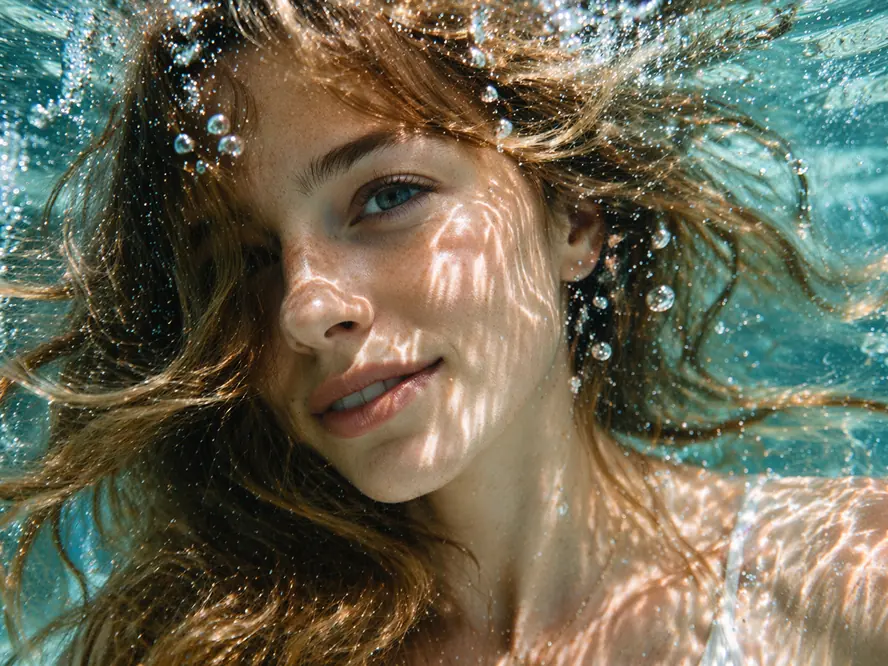
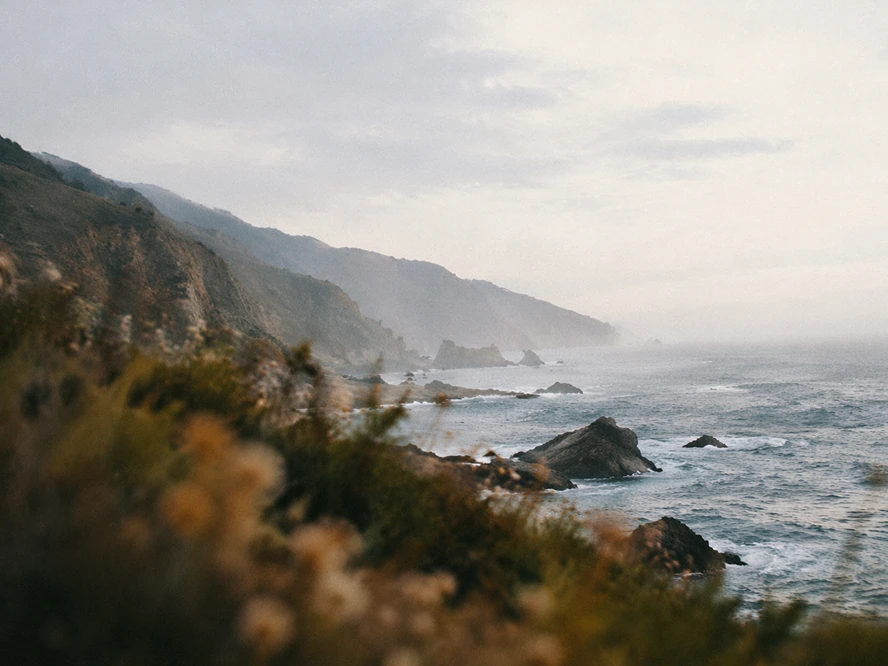
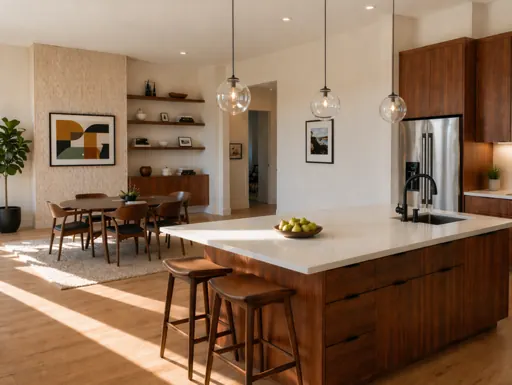
A quiet underwater fashion portrait, natural caustic light, suspended bubbles, calm expression, cinematic detail.
These existing images illustrate visual directions. They are not verified outputs of this prompt or of the model currently selected in the workspace.
Enter a text prompt of up to 2,048 characters. Choose a model shown in the current catalog and one of five requested aspect ratios. Submission requires sign-in; generation also depends on the provider being configured and any required credits being available.
Use a ready-made prompt direction, then make it your own.
3:4A confident leadership portrait in a refined editorial style.
 1:1
1:1A calm, credible healthcare portrait with clinical detail.
 9:16
9:16An observant creative portrait with a documentary feel.
 16:9
16:9A focused player portrait with energetic modern lighting.
 1:1
1:1A considered portrait for a design or studio profile.
 3:4
3:4A clear, curious science portrait with visual depth.
This image workspace takes text, not a reference upload. It has no mask editor, layer controls, seed field, or batch-size control. A selected ratio is a request, not a promise of exact pixel dimensions; inspect the returned image.
Open the full image workspaceReview saved AI tasks in Activity
For motion, use the separate text-to-video workspace. It sends your scene, requested aspect ratio and duration to a configured video model. Available models and supported outputs depend on the current configuration; an image task does not automatically become a video.
Text-to-video controls built for short scenes
Landscape, portrait, square, and social-ready frames
Queued and completed tasks stay in Activity
From scene direction to motion
Existing illustrative clip · not a verified generation result
Use these visual directions to plan a first draft, not as evidence of a particular model's output. The accompanying images are illustrative assets. Start with one scene and inspect the result before adapting it for publication.
Explore materials, lighting, styling, and backgrounds before committing to a production shoot or detailed design pass.
Create square, portrait, wide, and vertical directions for posts, stories, launch visuals, and campaign experiments.
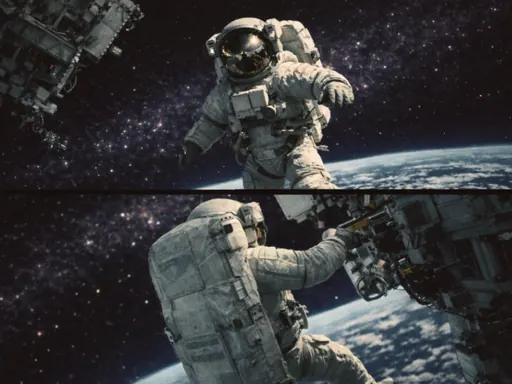
Turn a scene description into key visual directions, then test action, camera movement, and pacing in a short clip.
Develop repeatable visual cues for people, places, atmosphere, and the worlds around a story or brand.
Start with one intended use and one scene. The example below is a writing aid, not a tested recipe or a guarantee of the result.
Name the intended use, one subject and one setting. Add viewpoint, lighting and the detail that matters most. Keep the prompt under 2,048 characters; instructions can guide a result but do not lock it.
Use a model from the current image dropdown. Request 1:1, 4:3, 3:4, 16:9 or 9:16 for the intended placement. There is no separate pixel-resolution control here, and providers may handle the request differently.
Submit from the workspace. If sign-in is requested, return and check that your prompt, model and ratio are still set before submitting. A configuration, access or credit error needs resolving before generation can proceed.
Wait for a returned image or inspect the task status in Activity. Check the subject, edges, unwanted text and framing before publishing. A queued task is not a completed image. Save any result you need; task history is not a promise of permanent file storage.
A single matte ceramic mug on a light oak desk beside a window, soft morning side light, close three-quarter view, warm neutral colors, empty background space on the right for a headline, no text or logos.
Replace the subject and setting, then paste the prompt into the workspace. Choose the aspect ratio with the controls. Add the headline in your usual design tool after reviewing the image; this is not a typography or layout editor.
If the scene is crowded, remove secondary objects. If the framing is wrong, specify the camera view and subject position. If a detail is inaccurate, make it one clear sentence. Keep the model and ratio unchanged while adjusting one part of the prompt, then compare the new result manually. Exact identity, text and repeated composition are not guaranteed.
Open the full image workspaceThe current image workflow sends a text prompt, selected model and requested aspect ratio. It returns generated media and a task record, not editable layers, a finished brand identity or a guarantee of publish-ready artwork.
Keep visual intent in plain language instead of navigating a crowded editing timeline.
Use 1:1, 4:3, 3:4, 16:9, or 9:16. Video requests also include duration.
The public catalog is admin-managed, and the server checks whether the selected model is enabled. A visible choice alone does not guarantee that its provider is currently reachable.
Tasks are associated with your account, including their status and any returned results. Check Activity after an interruption before submitting the same request again.
Compare included credits and billing intervals. The selected model determines the cost of each generation, so review its exact requirement before submitting.
5,000 credits for focused personal projects, with email support.
50,000 credits, priority support, and API access for regular creative work.
500,000 credits, dedicated support, and room for larger production needs.
Clear answers about prompts, formats, accounts, and generated media.
The homepage contains a text-to-image workspace. It accepts a prompt, enabled model and requested aspect ratio. A separate text-to-video page offers motion controls when a video provider is configured. The homepage image form does not upload references, edit masks or produce editable design files.
Start with one subject and setting, then specify viewpoint, light, composition and a small number of constraints. Use the copyable example above as a structure. Remove competing directions rather than adding more adjectives, and keep the prompt within 2,048 characters.
Choose from the current dropdown; model names are not fixed on this page. Keep that choice unchanged while improving the first prompt. If the request reports a disabled model or provider configuration error, refresh the catalog or contact support rather than repeatedly submitting the same task.
The controls offer requests for 1:1, 4:3, 3:4, 16:9 and 9:16. Actual dimensions and treatment of the requested ratio depend on the selected provider. Check the returned file before using it in a fixed-size placement; this form has no crop or pixel-resolution editor.
The separate video workspace offers 5- and 10-second duration requests. Availability and the returned duration depend on the configured model and provider. Those controls do not animate an image generated on this page.
Yes. Submission requires sign-in. The server also checks the selected model and any required credits. If login interrupts the flow, check your prompt and controls again before submitting; do not assume the text was saved as a draft.
Use Activity to inspect the saved task and its status, or view returned media in the workspace. After a timeout, check Activity before resubmitting. A pending task is not evidence of a finished file, and a failed task has no usable output unless a result is actually shown. No completion time or permanent file retention is promised here.
Commercial rights depend on the selected model, provider terms, your plan, and the rights to any source material. Review those terms before publishing client or paid work.
Write the scene, choose image or video, and turn the direction in your head into something you can see.